Make Fedora Bulletproof: BTRFS Snapshots, Timeshift and GRUB for Easy System Rollback
I recently saw a friend’s LinkedIn post that stuck with me: their PopOS system was borked after a failed update, and they’re now reinstalling Fedora from scratch. It’s a familiar tale in Linux circles, but not inevitable.
The irony? Fedora is closer to bleeding edge than distributions like PopOS, which means regressions happen more often. Not frequently, but they do. Yet Fedora ships with minimal safeguards. I’ve never ended-up with an unbootable system on Fedora, but a couple of years back, a kernel update took out fingerprint scanner support for instance.
The real solution isn’t one distribution or another; it’s to make it so that when something goes wrong, you can roll back the OS effortlessly without touching your personal data.
That’s where BTRFS meets Timeshift — and to polish the experience, a sprinkle of GRUB configuration.
The Perfect Combo
The setup we’re going for relies on four components working together:
- BTRFS as your root filesystem (Fedora’s default)
- Timeshift for automatic snapshots and snapshot management
- grub-btrfs to surface snapshots as GRUB boot entries
- timeshift-autosnap-dnf5 to automatically snapshot before every
dnftransaction
The result: every time you update or your system (or boot it, if configured as such in Timeshift), a snapshot is created automatically and appears in your GRUB menu. If something breaks, you reboot, pick a working snapshot, and carry on. Your home directory is never touched.
Step by Step
1. Prerequisites: Start Here If You Haven’t Already
This guide builds directly on my previous article about configuring Fedora subvolumes for Timeshift. You’ll need to have completed those steps first:
- Renamed your BTRFS subvolumes to Ubuntu’s naming convention (
@for root,@homefor home) - Updated
/etc/fstabto mount from the renamed subvolumes - Rebooted and confirmed everything works
If you skipped that, go back and do it now. This article assumes that foundation.
A Note on GRUB Configuration
The previous article used this command to update GRUB:
$ sudo grub2-mkconfig -o /boot/efi/EFI/fedora/grub.cfg
That no longer works on recent Fedora releases. If you try it, GRUB itself will refuse and tell you exactly why:
Running 'grub2-mkconfig -o /boot/efi/EFI/fedora/grub.cfg' will overwrite the GRUB wrapper.
Please run 'grub2-mkconfig -o /boot/grub2/grub.cfg' instead to update grub.cfg.
GRUB configuration file was not updated.
So from here on, always use:
$ sudo grub2-mkconfig -o /boot/grub2/grub.cfg
2. Install Timeshift
With the subvolume naming sorted and GRUB updated, install Timeshift:
$ sudo dnf install timeshift
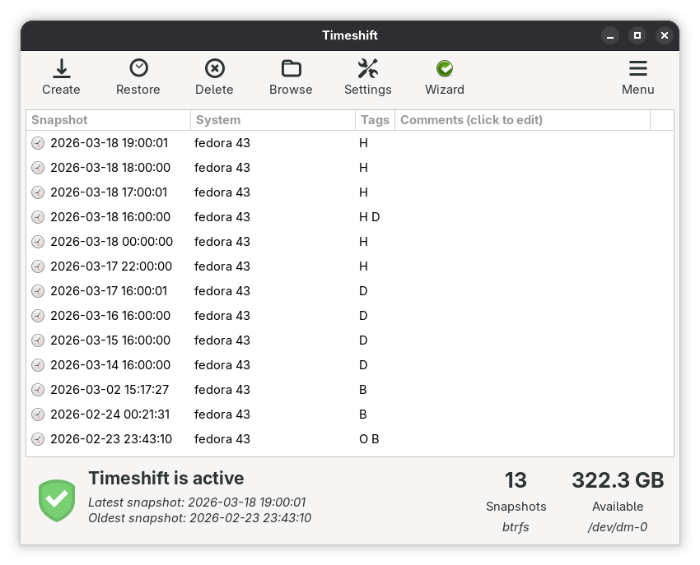
On first launch, the setup wizard will guide you through selecting your BTRFS partition as the snapshot type. Configure your snapshot schedule. Timeshift supports a GFS (Grandfather-Father-Son) scheme with hourly, daily, weekly, and monthly retention levels, as well as boot-time snapshots if you prefer a trigger-based approach over a time-based one.
3. Install and Configure grub-btrfs
grub-btrfs watches for new BTRFS snapshots and automatically adds them as entries in your GRUB menu. It must be installed from source - there is no packaged version for Fedora.
Clone the repository and apply the Fedora-specific configuration adjustments:
git clone https://github.com/Antynea/grub-btrfs
cd grub-btrfs/
sed -i '/#GRUB_BTRFS_SNAPSHOT_KERNEL/a GRUB_BTRFS_SNAPSHOT_KERNEL_PARAMETERS="systemd.volatile=state"' config
sed -i '/#GRUB_BTRFS_GRUB_DIRNAME/a GRUB_BTRFS_GRUB_DIRNAME="/boot/grub2"' config
sed -i '/#GRUB_BTRFS_MKCONFIG=/a GRUB_BTRFS_MKCONFIG=/sbin/grub2-mkconfig' config
sed -i '/#GRUB_BTRFS_SCRIPT_CHECK=/a GRUB_BTRFS_SCRIPT_CHECK=grub2-script-check' config
Those sed commands are patching grub-btrfs’s own config file to point to Fedora’s paths rather than the Ubuntu/Debian defaults it ships with. Then install and regenerate GRUB:
$ sudo make install
$ sudo grub2-mkconfig -o /boot/grub2/grub.cfg
Next, edit the grub-btrfsd service so it knows to look for Timeshift snapshots specifically:
$ sudo systemctl edit --full grub-btrfsd
Find the ExecStart line and change it to:
ExecStart=/usr/bin/grub-btrfsd --syslog --timeshift-auto
The --timeshift-auto flag tells the daemon to watch Timeshift’s snapshot directory rather than a generic BTRFS path. Finally, enable and start the service:
$ sudo systemctl enable --now grub-btrfsd
From this point on, every snapshot you create with Timeshift will automatically appear as a boot option in GRUB.
4. Automate Snapshots on DNF Transactions
This is the bonus that really ties it together: timeshift-autosnap-dnf5 is a DNF5 plugin that triggers a Timeshift snapshot automatically before every package transaction.
Combined with grub-btrfsd running in the background, the flow becomes fully automatic:
- You run
sudo dnf update - A Timeshift snapshot is created before anything is changed
grub-btrfsddetects the new snapshot and updates the GRUB menu- If the update breaks something, reboot and select the pre-update snapshot
No manual intervention, no remembering to snapshot before updates.
Install the dependencies first:
$ sudo dnf install git make libdnf5-plugin-actions
Then clone and install:
$ git clone https://github.com/CalliopeSystem/timeshift-autosnap-dnf5.git
$ cd timeshift-autosnap-dnf5
$ sudo make install
Then review the configuration file:
$ sudo nano /etc/timeshift-autosnap-dnf5.conf
The key setting to check: if you don’t have a dedicated /boot partition (the common case on Fedora with a single BTRFS root), set snapshotBoot=false. The plugin will still back up /boot/efi via rsync. You can also tune maxSnapshots to control how many auto-snapshots are retained before old ones are purged.
To verify everything is wired up correctly, trigger a test snapshot manually:
$ sudo timeshift-autosnap-dnf5
Or simply reinstall any package and watch the snapshot get created automatically before dnf does anything:
$ sudo dnf reinstall bash
A Few Caveats
Disk space: Snapshots consume storage. Keep an eye on your BTRFS partition - if it fills up, snapshots will start failing silently. Configure Timeshift’s retention policy to keep a sensible number of snapshots and auto-delete old ones.
Home directory: System rollbacks don’t affect @home, but application configs living in ~/.config/ roll back with the system only if they’re on the @ subvolume. Anything under your home stays as-is—which is usually what you want, but worth being aware of. One such example could be Flatpaks installed with the --user flag.
The Payoff
This setup changes your relationship to system updates. Surprises might still show up, but they’re no longer much of a deal. A broken fingerprint scanner after a kernel update? Reboot, pick yesterday’s snapshot, done. Your friend’s lost afternoon reinstalling their OS? Not your problem.
An hour of setup today makes every future update a non-event.